
How to activate Office 2024 Professional Plus: step-by-step guide
In this guide
- What you need before you start
- Step 1: open the email with your licence
- Step 2: download and install Office 2024
- Step 3: enter your product key
- Step 4: choose phone activation
- Step 5: copy the installation ID
- Step 6: get the confirmation ID with Get CID
- Step 7: enter the confirmation ID
- Step 8: done, Office is activated
- Common errors and how to fix them
- What Office 2024 Professional Plus includes
- Frequently asked questions
Bought Microsoft Office 2024 Professional Plus and want to install and activate it without hassle? This guide takes you through every step, from the email with your product key to an activated Office, plus fixes for the most common errors. It takes about 5 minutes.
The short version
- Copy the product key from your order email.
- Download Office 2024 from the Download links page and install it.
- Open Word and enter the product key.
- If Office doesn’t activate online, use phone activation with our Get CID tool: you don’t have to call anyone.
What you need before you start
- Your order email with the product key (25 characters, in the format XXXXX-XXXXX-XXXXX-XXXXX-XXXXX).
- A PC with Windows 10 or Windows 11: Office 2024 doesn’t run on Windows 7 or 8.1.
- An internet connection for the download and activation.
- About 4 GB of free disk space.
Tip: if your PC already has another version of Office or the preinstalled Microsoft 365 trial, uninstall it first from Settings → Apps → Installed apps. Two versions of Office on the same PC can block installation or activation.
Step 1: open the email with your licence
Right after payment you receive an email from CD Keys Deal with your product key, the Download the software button and a link to the guide. Copy the product key: you’ll need it in step 3. If you can’t find the email, check your spam or promotions folder.
Step 2: download and install Office 2024
Open the Download links page, choose Office 2024 Professional Plus in your language and run the downloaded file. These are the official Microsoft files. Installation is automatic: wait for the completion message.
Step 3: enter your product key
Open Word (or another Office app): the Enter your product key window appears. Paste the key and click Activate Office.
- If Office activates online straight away, you’re done.
- If the activation wizard or an error appears, continue with step 4: this is normal and takes 2 minutes to fix.
Step 4: choose phone activation
In the Microsoft Office Activation Wizard, select I want to activate the software by telephone and click Next. Don’t worry: you don’t have to call anyone, we’ll use our Get CID tool.
Step 5: copy the installation ID
In Step 2 of the window you’ll see the installation ID: 9 groups of digits. Select it and copy it. The country chosen in Step 1 doesn’t matter.
Step 6: get the confirmation ID with Get CID
Open the Get CID tool, enter your order email, paste the installation ID and click Get Confirmation ID. In a few seconds you receive the confirmation ID: 8 groups of digits.
Step 7: enter the confirmation ID
Go back to the activation wizard and type the 8 groups of the confirmation ID into boxes A to H. Click Next.
Step 8: done, Office is activated
You’ll see the message Your copy of Microsoft Office LTSC Professional Plus 2024 has been activated. Click Close: the licence is lifetime and never needs renewing.
Prefer to follow the steps with pictures? Use our interactive Office activation guide.
Common errors and how to fix them
Error 0xC004C008
It means the maximum number of online activations for that product key has been reached. That’s not a problem: phone activation works. Follow steps 4–7 with Get CID.
“The maximum allowed number of activations has been exceeded”
Same case as error 0xC004C008: Microsoft asks for verification by phone activation. Use Get CID to get the confirmation ID.
Errors 0xC004C060 and 0xC004C003
In these cases, contact us: attach a screenshot of the error and your order number, so we can check right away and give you the right fix.
Office asks you to sign in with a Microsoft account
Office 2024 Professional Plus doesn’t need a Microsoft account to activate: close the sign-in window and enter your product key. If it keeps asking, the preinstalled Microsoft 365 is probably still on your PC: uninstall it and open Word again.
What Office 2024 Professional Plus includes
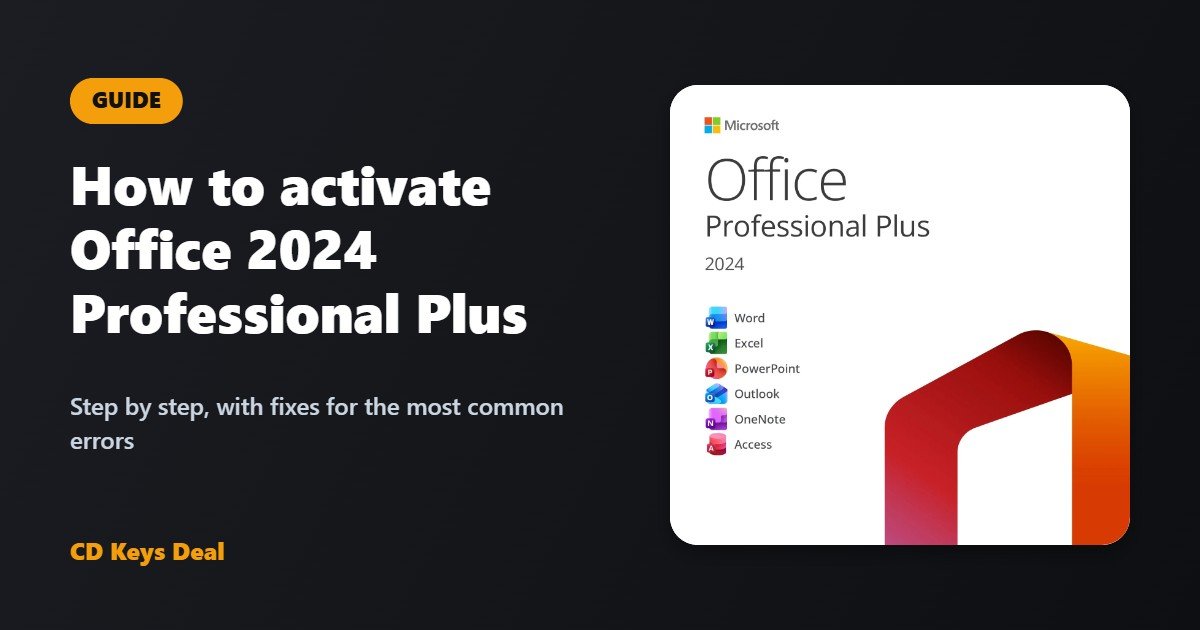
Word, Excel, PowerPoint, Outlook, OneNote and Access, as desktop apps for Windows. It’s a lifetime licence: pay once, no subscription. If you need it on more computers, there are also versions for 2, 5, 10 and 20 PCs.
See Office 2024 Professional Plus
Frequently asked questions
How long does it take to activate Office 2024?
Less than a minute with online activation. With phone activation through Get CID, about 5 minutes in total.
Can I reinstall Office on the same PC?
Yes. If you reinstall Office or Windows on the same computer, use the same product key; if online activation doesn’t work, use Get CID as in steps 4–7.
Does Office 2024 work on Mac?
No, Office 2024 Professional Plus is for Windows. For Mac you’ll find Office 2024 Home and Home & Business for Mac in our Office shop, with the Mac guide.
Still having problems?
Message us by chat or email with your order number and a screenshot: support is free and we reply quickly. If the code doesn’t work, we replace it or refund you, as set out in our warranty.
Read also
All articles
Visio 2024 and Project 2024 Professional LTSC: what they are for and how to activate them
Visio 2024 and Project 2024 Professional LTSC: what they are for, what LTSC means, what’s new, requirements, Office compatibility and how to install and activate them.
Office 2024 vs Office 2021 vs Microsoft 365: which is worth it?
Office 2024, Office 2021 or Microsoft 365? Lifetime licence or subscription: differences, cost over time, updates and which version suits you.
How to change the language of Windows 11 IoT Enterprise LTSC 2024 (French, Italian, Spanish, German…)
Windows 11 IoT Enterprise LTSC 2024 is English only. How to change the language of Windows 11 IoT LTSC to French, Italian, Spanish, German or another language completely, including the sign-in screen, and what to do if it switches back to English after updates.