
Visio 2024 and Project 2024 Professional LTSC: what they are for and how to activate them
In this guide
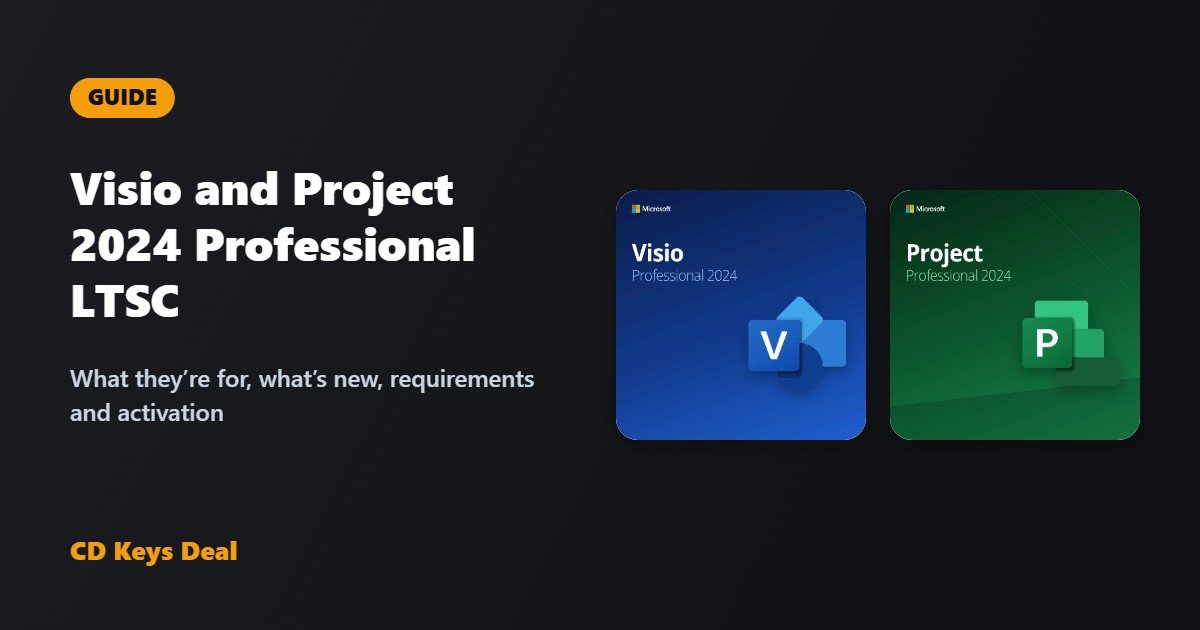
Need professional diagrams, or have to plan a project with deadlines, resources and costs? Then you’re looking at Visio 2024 Professional LTSC and Project 2024 Professional LTSC. This guide covers what they’re for, what LTSC means, what’s new in 2024, the requirements and how to install and activate them.
The short version
- Visio 2024 Professional LTSC: for flowcharts, org charts, network diagrams, floor plans and business processes.
- Project 2024 Professional LTSC: for planning projects with Gantt charts, resources, costs and reports.
- Lifetime licence, no subscription, with security updates until 9 October 2029.
- Windows 10 and Windows 11 only: there are no Mac versions.
What LTSC means
LTSC stands for Long-Term Servicing Channel: it’s the long-term version designed for businesses and professionals. You pay once and the program stays the same over time: it gets only security and stability updates, without the interface changing every month as it does with Microsoft 365 subscriptions.
Visio 2024 and Project 2024 were released on 1 October 2024 and Microsoft supports them until 9 October 2029. The licence doesn’t expire, though: after that date they keep working as normal.
Visio 2024 Professional LTSC: what it’s for
Visio is Microsoft’s program for creating clear, professional diagrams from ready-made templates. With the Professional version you can create:
- flowcharts and business processes (including BPMN);
- org charts and team maps;
- network diagrams and IT architectures, with shapes for servers, cloud and Azure;
- software and database diagrams (UML, entity-relationship);
- office layouts, facilities and floor plans.
Compared with the Standard version, Professional adds the technical templates (network, software, database, processes) and the ability to link diagrams to data, for example from Excel, so shapes update with real values.
What’s new in Visio 2024
- new shapes and stencils: more than 10 Azure stencils, Kubernetes shapes, icons, sticky notes for brainstorming and infographic graphics;
- the new Office 2024 theme, more modern and easier to read;
- the search bar at the top of the window, as in the other Office apps.
See Visio 2024 Professional LTSC
Project 2024 Professional LTSC: what it’s for
Project is Microsoft’s tool for planning and tracking projects: from tasks to deadlines, from the people involved to the costs. With Project 2024 Professional you get:
- Gantt charts with dates calculated automatically from task dependencies;
- multiple timelines to present complex projects;
- resource and workload management, with what-if scenarios;
- built-in reports such as Burndown and Resource Overview;
- timesheets for project and non-project work;
- sync with Project Online and Project Server, which the Standard version doesn’t have.
See Project 2024 Professional LTSC
System requirements
- Windows 11 or Windows 10 (or Windows Server 2019);
- 1.6 GHz processor with 2 cores;
- 4 GB of RAM (2 GB for the 32-bit version);
- 4 GB of free disk space;
- screen with at least 1280 × 768 resolution.
Visio and Project aren’t available for Mac. On a Mac you can use them inside Windows, for example with Parallels Desktop.
Do they work alongside Office?
Yes. Visio and Project 2024 install alongside Office 2024 without problems. Two rules to remember:
- use the same 32-bit or 64-bit version as the Office you already have;
- if the PC has a different version of Office (for example 2021 or a preinstalled Microsoft 365 trial), the installation may stop with a conflict. In that case message us and we’ll tell you how to proceed.
If you need several programs together, we also have bundles of Office 2024 + Visio 2024 + Project 2024, with or without Windows.
How to install and activate them
- Copy the product key from your order email.
- Open the Download links page, choose Visio 2024 Pro or Project 2024 Pro, your language and the 32-bit or 64-bit version, then run the file.
- Open Visio or Project: in the Enter your product key window, paste the key and click Activate.
- If the Activation Wizard or error 0xC004C008 appears, choose Activate the software by telephone and use our Get CID tool: you don’t have to call anyone.
The steps are the same as for Office: you’ll find them with pictures in the Office activation guide and in the article How to activate Office 2024 Professional Plus.
Frequently asked questions
Do I have to pay a subscription?
No. Visio 2024 and Project 2024 Professional LTSC are lifetime licences: you pay only once.
Can I install them on more than one PC?
Each licence is for one PC. For teams and offices there are also versions for 2, 5, 10 and 20 PCs.
Do I need a Microsoft account?
No, the product key is all you need to activate.
How is this different from Visio Plan and Project Plan in Microsoft 365?
The Microsoft 365 plans are monthly or yearly subscriptions with online features. The LTSC 2024 versions are desktop programs you buy once and keep.
Not sure which version you need? Message us: we’ll help you choose, for free.
Read also
All articles
Office 2024 vs Office 2021 vs Microsoft 365: which is worth it?
Office 2024, Office 2021 or Microsoft 365? Lifetime licence or subscription: differences, cost over time, updates and which version suits you.
How to activate Office 2024 Professional Plus: step-by-step guide
How to install and activate Office 2024 Professional Plus in 5 minutes: product key, download, phone activation with Get CID and fixes for errors 0xC004C008, 0xC004C060 and 0xC004C003.
How to change the language of Windows 11 IoT Enterprise LTSC 2024 (French, Italian, Spanish, German…)
Windows 11 IoT Enterprise LTSC 2024 is English only. How to change the language of Windows 11 IoT LTSC to French, Italian, Spanish, German or another language completely, including the sign-in screen, and what to do if it switches back to English after updates.