Slow PC: What Really Helps (and What Doesn’t) to Speed It Up
In this guide
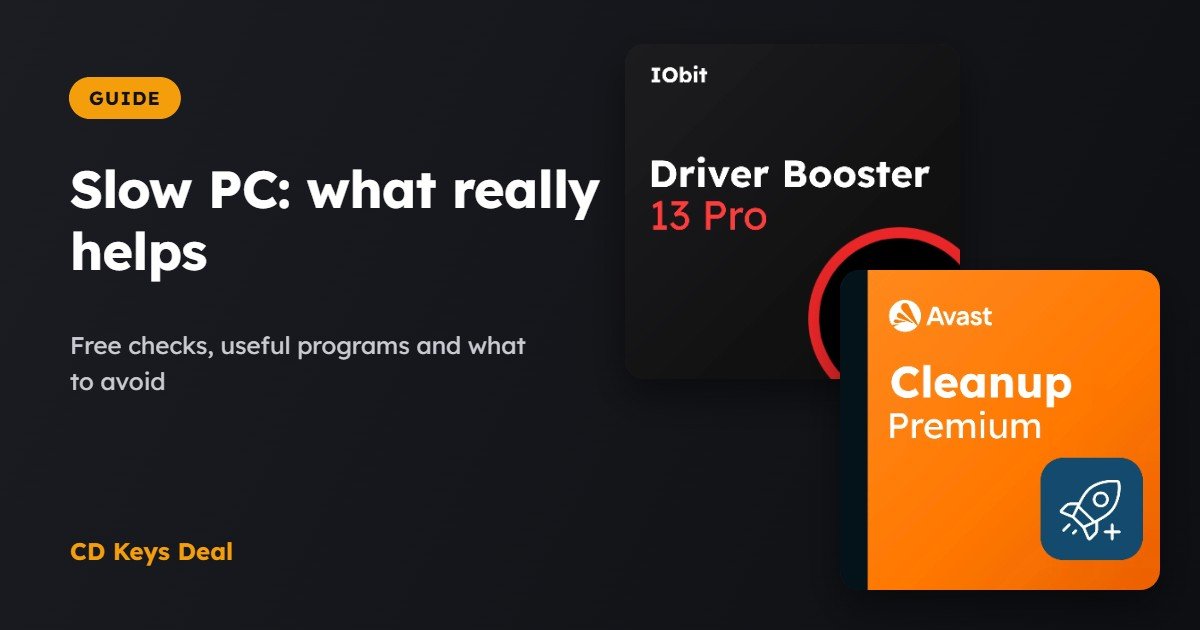
Does your PC take forever to start, do programs freeze and is the fan always spinning? Before you think about a new computer, know that the problem can often be fixed in half an hour. In this guide we look at what really helps (and what doesn’t), from free checks all the way to optimisation programs like Driver Booster, Avast Cleanup and AVG TuneUp.
The short version
- The most common causes: too many startup programs, a nearly full drive, old drivers and a mechanical hard drive (HDD) instead of an SSD.
- Free: turn off startup apps, free up space and update Windows.
- With one click: Driver Booster updates your drivers, Avast Cleanup and AVG TuneUp clean up and put heavy programs to sleep.
- The biggest improvement of all: switching to an SSD.
1. The free checks (15 minutes)
- Startup apps: press Ctrl + Shift + Esc, open Startup apps and turn off the ones you don’t need straight away (Spotify, Teams, game launchers…).
- Disk space: if your C: drive is nearly full, Windows slows down. Open Settings → System → Storage and use Cleanup recommendations.
- Updates: install any pending updates from Windows Update and restart.
- Malware: run a full scan with your antivirus. Some malware uses up CPU in the background.
- Really restart: “Shut down” with Fast Startup turned on doesn’t clear everything. Use Restart every now and then.
2. What optimisation programs do
| Program | What it does | When you need it | Our price |
|---|---|---|---|
| IObit Driver Booster Pro | Updates drivers and game components | Audio, network or display problems; games that stutter | 1 PC €9.99 · 3 PCs €17.99 |
| Avast Cleanup Premium | Cleanup, sleep mode for programs, app updates | A PC full of programs and junk files | €9.99 |
| AVG PC TuneUp | Like Avast Cleanup (same company), automatic maintenance | If you want everything done automatically | €9.99 |
| IObit Smart Defrag Pro | Defragments HDDs, faster startup | PCs with a mechanical hard drive | 3 PCs €14.99 |
| IObit Uninstaller Pro | Removes stubborn programs and their leftovers | Programs that won’t uninstall | 3 PCs €27.99 |
Our store prices at the time of publishing, 1-year licences.
What you don’t need
- Aggressive “registry cleaners”: the speed gain is close to zero. Programs that do other things too, like the ones above, are a better bet.
- Defragmenting an SSD: it’s pointless and wears it out. Windows already optimises it by itself with TRIM.
- Two optimisation programs at once: pick one.
3. Guide: updating drivers with Driver Booster
Old drivers are a common cause of freezes, blue screens and audio or Wi-Fi problems. Here’s how to update them all at once. The screens are simplified.
Start the scan
Install Driver Booster, activate the Pro version with the code you received by email and click the big Scan button.
Click Scan
Check the drivers to update
After a few seconds you’ll see the list of outdated drivers, with how important each update is. Driver Booster automatically creates a restore point before installing them.
Click Update Now
Wait for the installation
The drivers are downloaded and installed one after the other. The screen may go black for a moment while the graphics card updates: that’s normal.
Wait until all drivers show as up to date
Restart the PC
Some drivers only take effect after a restart. If something goes wrong, you can go back to the previous version from Action Center → Rescue Center.
Click Restart now
You need to restart your computer to finish installing some drivers.
4. When you need new hardware
- Mechanical hard drive (HDD): switching to an SSD is the biggest improvement you can make. The PC starts in a few seconds. You can move everything over without reinstalling: read our guide on how to clone your drive to an SSD.
- Not enough RAM: Windows 11 needs at least 8 GB, ideally 16 GB if you keep lots of browser tabs open.
Frequently asked questions
Are these programs safe?
Yes, if you download them from the official websites. They create restore points before major changes, so you can always go back.
Do I need to keep them running all the time?
No need. You can leave automatic maintenance on once a week and turn off the notifications you’re not interested in.
Do they work on Windows 10 and 11?
Yes, all the programs in this guide are compatible with Windows 10 and Windows 11.
Read also
All articles
Edit a PDF Without Adobe: PDFelement, PDFChef or Nitro?
How to edit, sign and convert PDFs without an Adobe subscription: PDFelement, PDFChef and Nitro PDF Pro compared, plus a step-by-step guide.
Video Editing: Filmora vs Movavi Video Suite – Which One to Choose?
Filmora or Movavi Video Suite? Two easy video editors with a lifetime licence compared, free alternatives, and which to pick for social, family or tutorials.
Disk Partitions: How to Extend C: Without Losing Data
C: full and D: empty? What partitions are, what Windows can do, and how to move space from D: to C: without losing data using AOMEI Partition Assistant.