
How to Install Windows 11 on a Mac with Apple Silicon (M1, M2, M3, M4) Using Parallels Desktop
In this guide
Got a Mac with Apple silicon (M1, M2, M3, M4 or later) and need a program that only exists for Windows? With Parallels Desktop you can run Windows 11 on your Mac, side by side with macOS, without restarting. Boot Camp no longer exists on these Macs, and Parallels is the solution authorized by Microsoft. This guide walks you through everything, step by step.
The short version
- Install Parallels Desktop and activate it.
- Choose Download Windows 11 from Microsoft: Parallels downloads and installs the right version (ARM) by itself.
- Activate Windows with a Windows 11 Pro key in Settings → System → Activation.
What you need
- A Mac with Apple silicon (check in the Apple menu → About This Mac: next to Chip you’ll see “Apple M…”).
- At least 8 GB of RAM (16 GB to work comfortably) and about 60 GB free on your drive.
- A Parallels Desktop licence.
- A Windows 11 Pro key: Microsoft has authorized Windows 11 Pro and Enterprise on Parallels with Apple silicon Macs. A regular Windows 11 Pro key also activates the ARM version.
See Parallels Desktop 26 See Windows 11 Pro
Step-by-step guide
Follow the steps with the Next button. The screens are simplified: names may differ slightly depending on your Parallels version.
Check your Mac’s chip
Open the Apple menu → About This Mac. Next to Chip it should say “Apple M…”.
Make sure the chip is Apple M1 or later
Install and activate Parallels Desktop
Download Parallels Desktop from the official website, install it, sign in with a Parallels account and enter the licence key you received by email.
Paste the key and click Activate
You’ll find it in your order email.
Choose “Download Windows 11 from Microsoft”
The Installation Assistant opens (if it doesn’t, open Control Center and click +). Parallels downloads the right version of Windows 11 (ARM) straight from Microsoft.
Select Download Windows 11 from Microsoft and click Continue
Install Windows and wait
Click Install Windows and accept the Microsoft licence agreement. Parallels downloads and installs everything by itself: it usually takes 20–40 minutes.
Leave the Mac on until Windows opens
Open the activation settings
In Windows open Settings → System → Activation and click Change next to Change product key.
Click Change
Enter your Windows 11 Pro key
Type the Windows 11 Pro key you received by email and click Next, then Activate. If you get error 0xC004C008, use our Get CID tool.
Enter the key and click Next
The product key is 25 characters long.
Tips to get the most out of it
- Coherence mode: Windows program windows appear right on your Mac desktop, as if they were macOS apps.
- Shared folders: your Mac’s Desktop, Documents and Downloads are already accessible from Windows.
- Performance: in Configure → Hardware you can give Windows more RAM and processors if you use heavy programs.
- Keyboard: Parallels translates Mac shortcuts (⌘C, ⌘V) into their Windows equivalents.
What works and what doesn’t
Windows 11 for ARM runs regular Windows (x64) programs thanks to built-in emulation: Office, business software, design software and most apps work without problems. These, however, may not work:
- some games with system-level anti-cheat;
- programs that install their own drivers (some antiviruses, corporate VPNs, older printers or scanners).
Before you buy, check that the program you need works on Windows on ARM.
Frequently asked questions
Do I really need a Windows licence?
Yes. The Parallels licence and the Windows licence are separate: without activation, Windows runs with limitations and shows a watermark.
Can I use Windows 11 Home?
Microsoft has authorized Windows 11 Pro and Enterprise on Parallels with Apple silicon Macs: that’s why we recommend Windows 11 Pro.
What if my Mac has an Intel processor?
It works there too, but Parallels installs the regular (x64) version of Windows 11. The steps and the activation key are the same.
Read also
All articles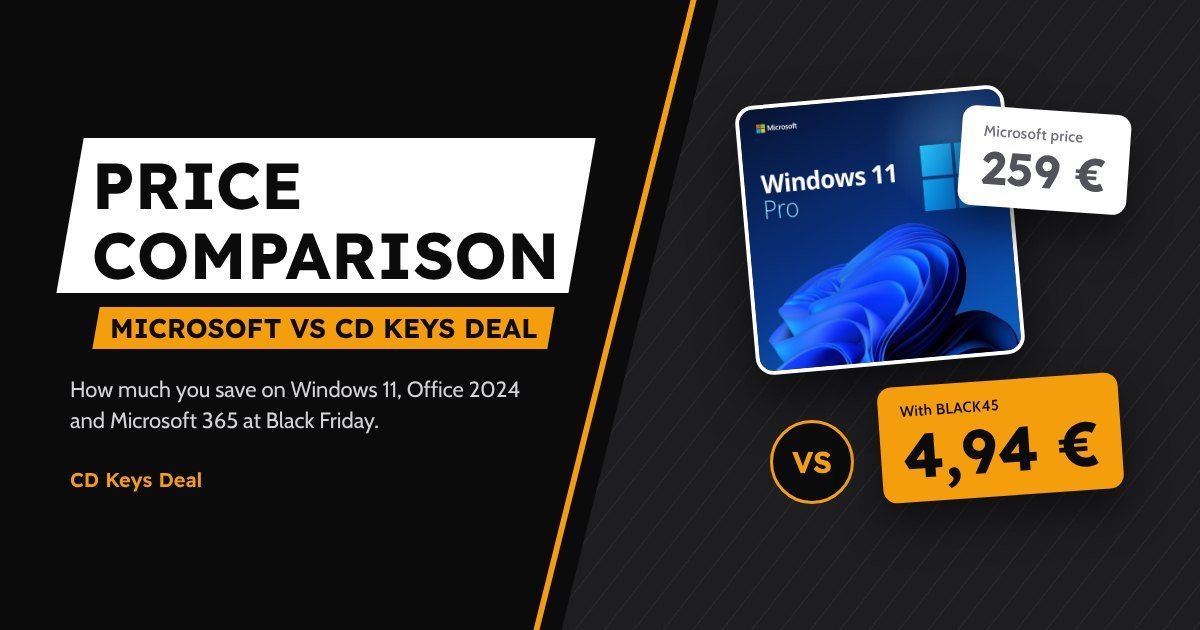
Black Friday 2026: how much you save on Windows and Office (price comparison)
Black Friday 2026 price comparison: Windows 11 and Office 2024 from Microsoft and at CD Keys Deal, Office 2024 against Microsoft 365 over 3 years and how much you save with BLACK25 and BLACK45.
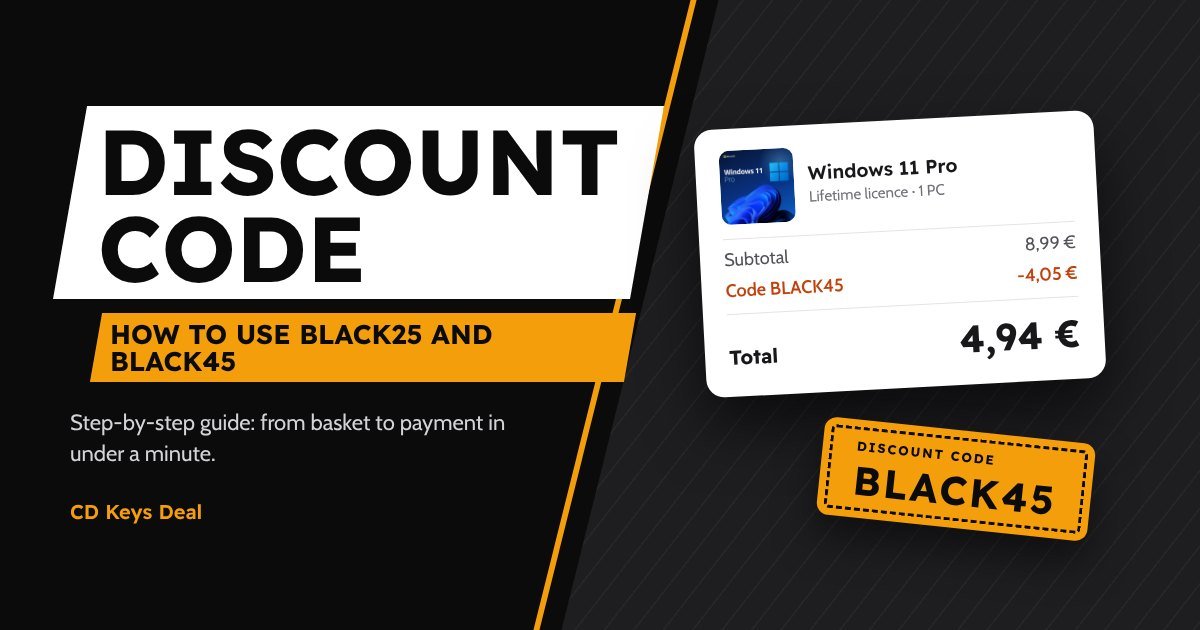
How to use the Black Friday discount codes BLACK25 and BLACK45 (step-by-step guide)
How to use the Black Friday discount codes BLACK25 and BLACK45 at CD Keys Deal: when each code works, where you see the discount and what to do if it does not work.
Black Friday 2026: genuine Windows and Office up to -45%
Black Friday 2026 at CD Keys Deal: dates, the BLACK25 and BLACK45 discount codes and prices for Windows 11, Office 2024, bundles and Windows Server up to -45%.