How to Clone HDD to SSD on Windows 11 Without Reinstalling
In this guide
Is your PC slow and you want to move to an SSD, but you don’t feel like reinstalling Windows and your programs and redoing all your settings? You don’t have to: you can clone your current drive to the new SSD and find everything exactly as it was, just much faster. In this guide we show you how to do it on Windows 11 (it works for Windows 10 too) using EaseUS Todo Backup Home.
The short version
- Connect the new SSD to your PC (inside the computer or with a USB adapter).
- In EaseUS Todo Backup open Tools → System Clone, choose the SSD as the destination and turn on Optimize for SSD.
- When it’s done, boot the PC from the SSD (from the BIOS or by swapping the drive).
Windows, your programs, files and activation stay just as they were.
What you need
- An SSD with at least as much space as the data currently on your C: drive (not the size of the drive: if you have a 1 TB drive with 200 GB used, a 250 GB SSD is enough).
- A way to connect it: a free slot (SATA or M.2) in a desktop PC, or a USB adapter or enclosure for SATA or NVMe SSDs, which is essential on laptops with only one slot.
- EaseUS Todo Backup Home: system cloning is a feature of the paid version.
- A backup of your important files, just to be safe.
Step-by-step guide
Follow the steps with the Next button. The screens are simplified: names may differ slightly depending on the program version.
Prepare the SSD in Disk Management
Connect the SSD, press Win + X and open Disk Management. The Initialize Disk window opens.
Choose GPT and click OK
Use the following partition style for the selected disks:
Open EaseUS Todo Backup
Install EaseUS Todo Backup, activate it with the code you received by email and open it.
Click Tools in the left-hand menu
Choose “System Clone”
System Clone copies only Windows and the boot partitions: it’s the right choice for moving to an SSD. The program picks the partitions to copy by itself.
Click System Clone
Choose the SSD as the destination
Select the new SSD. Careful: everything on the SSD will be erased.
Select the SSD and open Advanced options
Turn on “Optimize for SSD”
This option aligns the partitions on the SSD: without it, the drive can be slower.
Tick Optimize for SSD and click Proceed
Wait for the clone to finish
How long it takes depends on how much data you have: usually 10 to 60 minutes. You can leave the PC on and do something else.
Don’t turn off the PC until “Completed” appears
Boot the PC from the SSD
Restart and press the BIOS key (usually F2, Del or F10). On laptops with only one slot, just replace the old drive with the SSD instead.
Put the SSD first and save with F10
After cloning: 3 checks
- Space: if the SSD is bigger than the old drive and File Explorer shows less space than expected, open Disk Management, right-click C: → Extend Volume.
- TRIM: open Command Prompt and type
fsutil behavior query DisableDeleteNotify. If the result is 0, TRIM is on and the SSD stays fast over time. - Old drive: once the PC has been running fine for a few days, you can format the old drive and use it for storage.
Common problems
- The PC won’t boot from the SSD: in the BIOS, check that boot mode is set to UEFI and that the SSD is the first boot device.
- INACCESSIBLE_BOOT_DEVICE error: in the BIOS set the SATA mode to AHCI (as it was on the old drive).
- The program doesn’t see the SSD: initialize it as GPT in Disk Management and reconnect the USB adapter.
Frequently asked questions
Does Windows stay activated after cloning?
Yes. The licence is tied to the PC, not the drive: if you only change the drive, Windows stays activated.
Can I clone to an SSD that’s smaller than the old drive?
Yes, as long as the used data fits. First free up space with Disk Cleanup and move photos and videos to an external drive.
Is EaseUS Todo Backup only for cloning?
No: you can also use it for automatic backups of Windows and your files, and to create recovery media in case something goes wrong.
Read also
All articles
Nero Platinum Suite: What’s Included and How to Burn Discs on Windows 11
What's in Nero Platinum Suite and how to burn CDs, DVDs and Blu-rays on Windows 11: data discs, audio CDs, ISO images and video DVDs step by step.
Is CCleaner Still Worth It in 2026? Is It Safe?
Do you still need CCleaner in 2026, and is it safe? What Windows 11 already does, what CCleaner Professional adds and how to set it up properly.
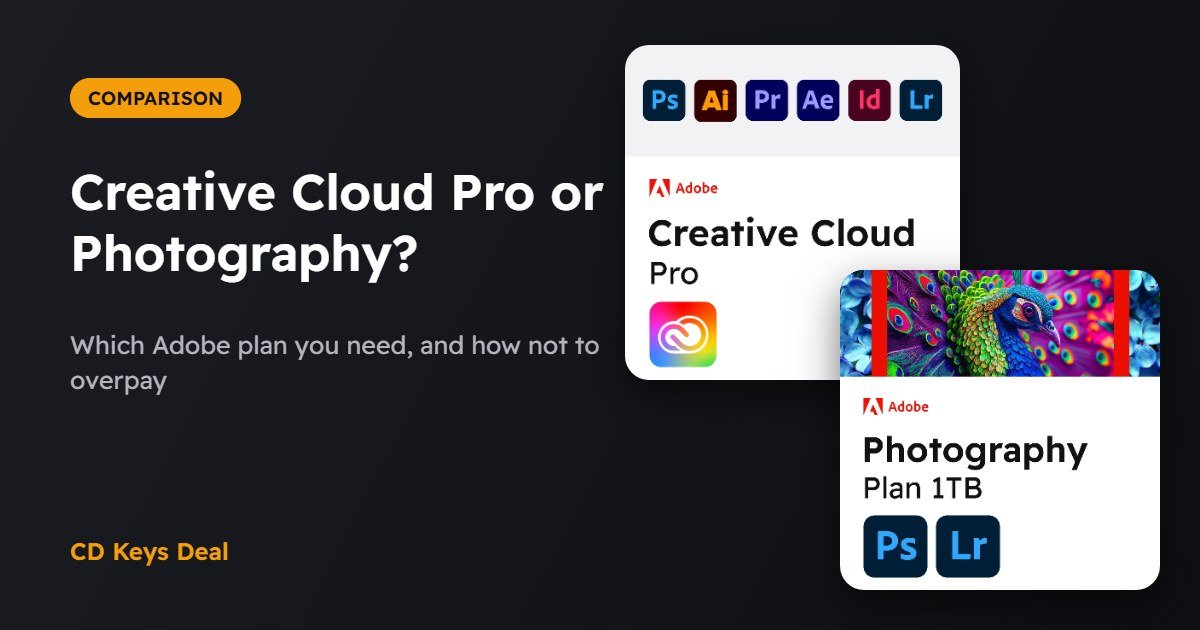
Adobe Creative Cloud Pro vs Photography Plan: Which Adobe Plan Do You Need?
Photography plan or Creative Cloud Pro? See what each Adobe plan includes, who it's for and how to avoid paying for apps you'll never use.