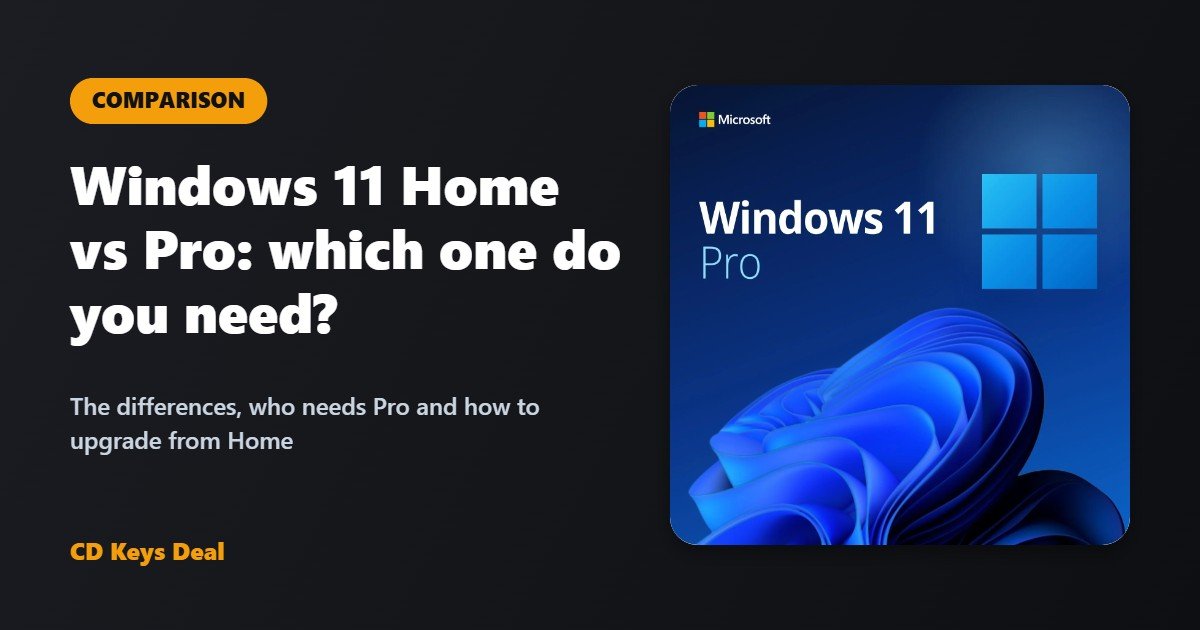
Windows 11 Home vs Pro: which one do you need?
In this guide
About to buy Windows 11 and not sure whether to get Home or Pro? For everyday use they’re the same: same apps, same games, same speed. The difference is in the tools for work, security and managing your PC. This guide shows what changes, who needs Pro and how to upgrade from Home to Pro without reinstalling anything.
The short version
- Choose Home if you use your PC for browsing, studying, Office, streaming and gaming.
- Choose Pro if you need BitLocker, Remote Desktop, virtual machines (Hyper-V) or you use your PC for work.
- Already on Home? You can upgrade to Pro in 5 minutes with a product key, without losing files or programs.
What Home and Pro have in common
Windows 11 Home and Pro are the same operating system: same interface, same security updates, same performance in games and programs. Both include:
- Microsoft Defender antivirus and firewall
- Windows Hello to sign in with your face, fingerprint or PIN
- Microsoft Store and every PC game, including Xbox Game Pass
- Snap Layouts, virtual desktops and widgets
- The same yearly feature updates
The differences: what Windows 11 Pro adds
| Feature | Home | Pro |
|---|---|---|
| BitLocker drive encryption | No (only device encryption on some PCs) | Yes |
| Remote Desktop (control this PC from another one) | Client only | Yes |
| Hyper-V (virtual machines) | No | Yes |
| Windows Sandbox (test programs safely) | No | Yes |
| Group Policy Editor (gpedit) | No | Yes |
| Company domain and Microsoft Entra ID | No | Yes |
| Deferring updates (Windows Update for Business) | No | Yes |
| Maximum supported RAM | 128 GB | 2 TB |
BitLocker: protects your data if you lose your PC
With BitLocker the whole drive is encrypted: if your laptop is stolen, nobody can read your files without the password or recovery key. You can also encrypt USB sticks with BitLocker To Go. It’s the main reason people who handle client data choose Pro.
Remote Desktop: use your office PC from home
With Pro you can connect to this PC from another computer, tablet or phone and use it as if you were sitting in front of it. With Home you can only connect to other PCs, not receive connections.
Hyper-V and Windows Sandbox: for people who test software
Hyper-V lets you create virtual machines with other operating systems. Windows Sandbox opens a throwaway Windows where you can try suspicious programs: when you close it, everything disappears. Useful for developers, technicians and anyone who tries a lot of software.
Which one should you choose?
Windows 11 Home is right if…
- you use your PC for the internet, social media, streaming, studying and Office;
- you game: performance is identical to Pro;
- you don’t need full encryption, Remote Desktop or virtual machines.
Windows 11 Pro is right if…
- you’re self-employed or work for a company and handle client data;
- you want to access your PC remotely;
- you’re a developer or technician, or you use virtual machines;
- you want to decide when updates get installed.
If you’re unsure, go for Pro: it has everything Home has plus the extra tools, and with a digital licence the price difference is small.
How to upgrade from Windows 11 Home to Pro
You don’t need to reinstall Windows: the upgrade keeps your files, programs and settings.
- Buy a Windows 11 Pro Upgrade or Windows 11 Pro licence: you receive the product key by email within minutes.
- Press Win + I and go to System → Activation.
- Open Upgrade your edition of Windows and click Change next to “Change product key”.
- Enter the 25-character product key and confirm: Windows downloads the Pro features and restarts.
- After the restart, System → Activation shows “Windows 11 Pro” and the status “Active”.
If you see an error such as 0xC004C008 or 0xC004C003, follow our Windows activation guide: with the Get CID tool you complete phone activation without making a call.
Frequently asked questions
Is Windows 11 Pro faster than Home?
No. In normal use and in games performance is identical. Pro adds features, not speed.
Can I go back from Pro to Home?
Not with a simple key change: you’d have to reinstall Windows. That’s why, if you’re in doubt, it’s better to start with Pro.
Is the licence lifetime?
Yes: our Windows 11 licences are lifetime, for one PC, and receive every Windows 11 update.
Do I need Office as well?
Windows doesn’t include Word and Excel. If you need them, the Windows 11 Pro + Office 2024 bundle costs less than buying the two separately.
Questions before you buy? Message us: we’ll help you choose the right version.
Read also
All articles
How to change the language of Windows 11 IoT Enterprise LTSC 2024 (French, Italian, Spanish, German…)
Windows 11 IoT Enterprise LTSC 2024 is English only. How to change the language of Windows 11 IoT LTSC to French, Italian, Spanish, German or another language completely, including the sign-in screen, and what to do if it switches back to English after updates.
PC won’t start after a Windows update: how to go back and fix it
Black screen, blue screen or endless restarts after a Windows update? How to open the Recovery Environment, uninstall the update and fix Windows without losing your files.
PC without TPM 2.0: how to move to Windows 11 (and what to do if you can’t)
“This PC doesn’t meet the system requirements”? How to check and turn on TPM 2.0 and Secure Boot in the BIOS, and what to do if the PC has no TPM: Windows 11 IoT Enterprise LTSC 2024.