
Guide to activating Windows 10 & Windows 11 (Phone Method)
If online activation fails, you can complete everything in a few minutes with phone activation. In this guide we show you how to get the Installation ID, use our Get CID tool and enter the Confirmation ID (CID) to activate Windows.
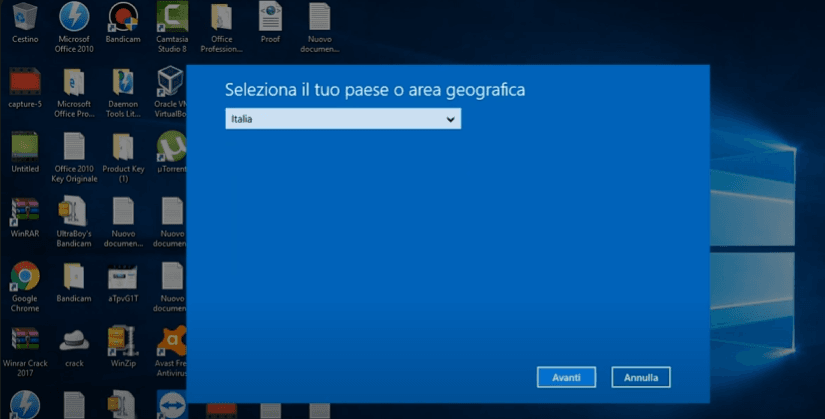
Open "slui 4" and select your country
In the Windows search bar type slui 4 and launch the phone activation tool. Select your country (e.g. United Kingdom) to see the Installation ID.

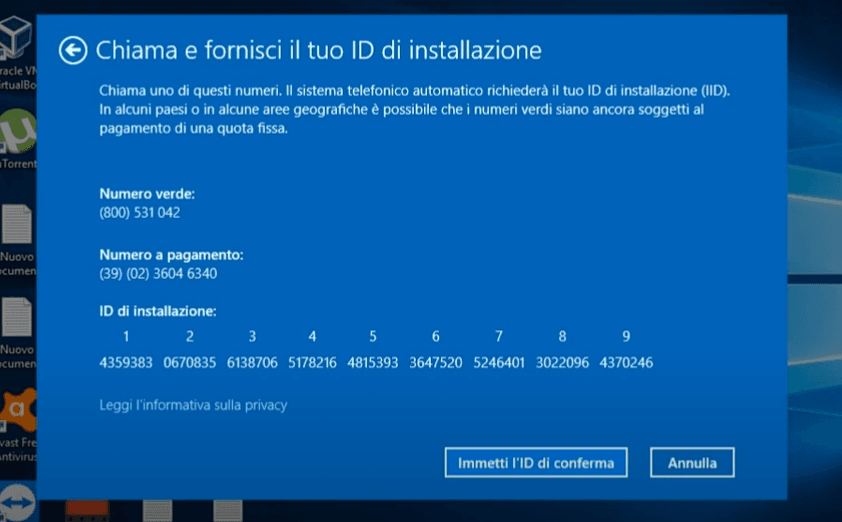
Copy the Installation ID
On the phone activation screen you will see the Installation ID split into groups. Copy it carefully (or write it down) because you will need it in the Get CID tool.
Use the "Get CID" tool to obtain the Confirmation ID
Open our Get CID tool, enter the Installation ID and the required details. In a few seconds you will receive your Confirmation ID (CID).
Enter the CID in Windows and complete activation
Go back to the phone activation screen and enter the Confirmation ID (CID) in the fields provided. Confirm to complete Windows activation.
Frequently asked questions (FAQ)
Why do I have to use phone activation?
I can't find "slui 4", what do I do?
I get an error during activation: how do I contact you correctly?
Need help?
Write to us: fast support for orders, invoices or assistance.